


1XROLL Download Guide for Mobile and Desktop Access
Table Of Content
- Understanding the 1XROLL Download Page
- Android Download and Home Screen Steps
- iOS Download and Home Screen Steps
- Windows Desktop Shortcut Steps
- macOS Shortcut Setup Guide
- Browser Compatibility and Access Tips
- Responsible Device Usage
- Frequently Asked Questions About 1XROLL Download
Understanding the 1XROLL Download Page
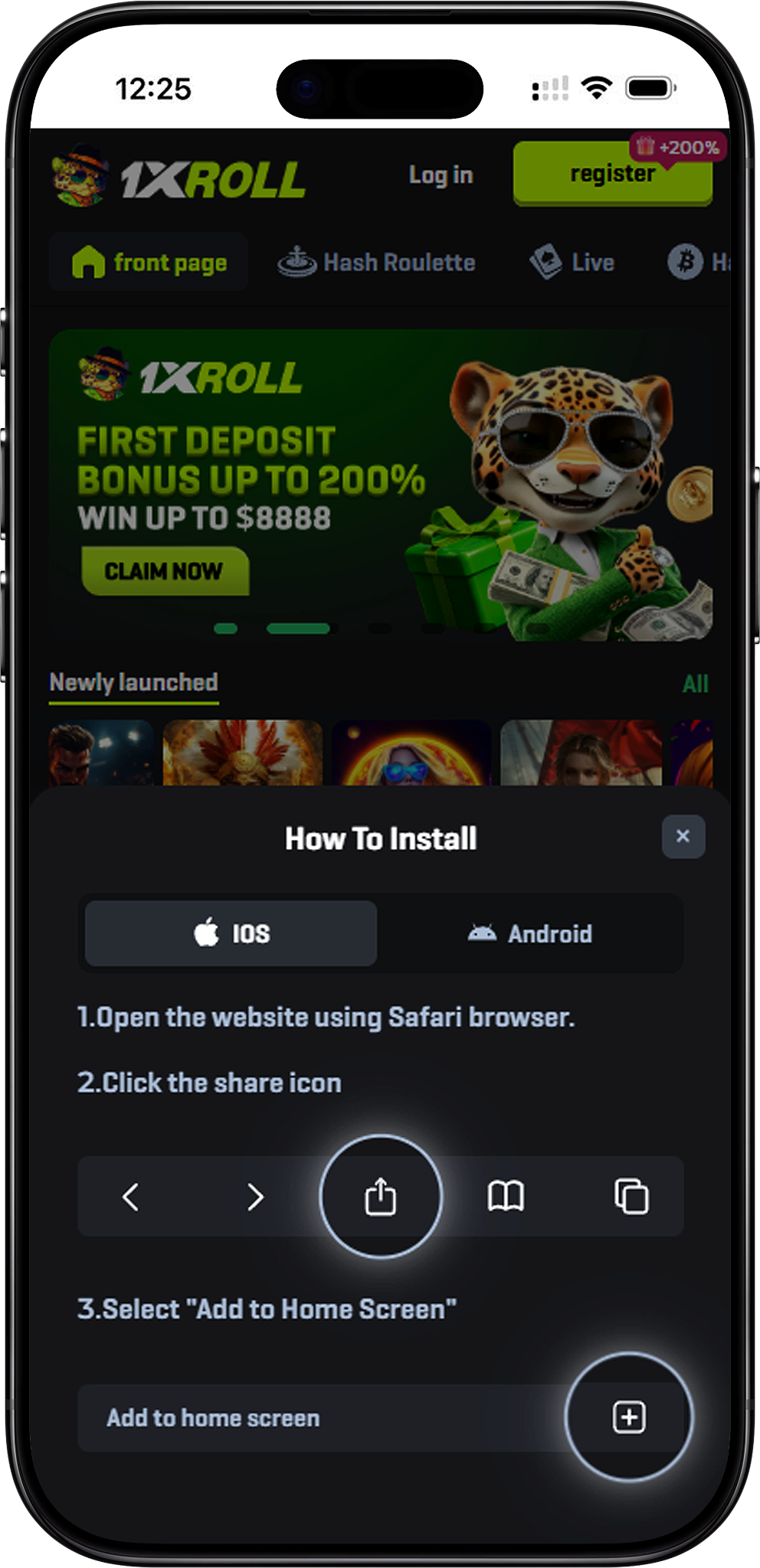
The 1XROLL Download page provides setup guidance for users who want easier access across Android, iOS, Windows, and macOS devices. At the moment, the official application is still coming soon, so users may create browser-based shortcuts for a smoother experience. Helpful pages include Home, Login, and Register.
Android Download and Home Screen Steps
Step 1: Open Chrome on Android
Launch the Chrome browser on your Android device before continuing with the setup process.
Step 2: Visit the Platform Website
Go to the platform website using your browser and wait for the page to load fully before accessing browser options.
Step 3: Open the Browser Menu
Tap the three-dot menu located in the upper-right section of the Chrome browser interface.
Step 4: Add the Shortcut to the Home Screen
Select the "Add to Home screen" option, then confirm the shortcut name so the icon can appear on your Android device.
Step 5: Confirm the Android Shortcut
After confirmation, the 1XROLL Android shortcut should appear directly on your device home screen for faster future access.
Android Access Note
Some Android devices may display "Install app" instead of "Add to Home screen." If this occurs, refreshing the page or temporarily switching to airplane mode may help the shortcut option appear correctly.
iOS Download and Home Screen Steps
Step 1: Open Safari on iPhone or iPad
The shortcut feature works through Safari, so users should avoid using unsupported browsers during setup.
Step 2: Visit the Platform Website
Enter the website address into Safari and allow the page to load completely before continuing.
Step 3: Tap the Share Button
Select the share icon located near the bottom of the Safari interface to open additional options.
Step 4: Choose Add to Home Screen
Select "Add to Home Screen" and customize the shortcut name if needed before saving it.
Step 5: Confirm the Shortcut Creation
Once completed, the 1XROLL iOS shortcut should appear on the iPhone or iPad home screen for convenient access.
Windows Desktop Shortcut Steps
Step 1: Use the Drag and Drop Method
Users may drag the lock icon from the browser address bar directly onto the desktop to create a browser shortcut.
Step 2: Create a Chrome Shortcut
In Chrome, open the More Tools section and select "Create Shortcut" to generate a desktop icon for easier platform access.
Step 3: Install as an Edge App
Microsoft Edge users may install the website as an app through the Apps menu for a more application-like browsing experience.
Step 4: Use the Manual Shortcut Method
Windows users can also create a desktop shortcut manually by selecting New → Shortcut and entering the website address.
macOS Shortcut Setup Guide
Step 1: Use Safari Shortcut Creation
Safari users may drag the website URL or lock icon onto the desktop to create a clickable shortcut file.
Step 2: Create a Chrome Shortcut on macOS
Chrome on macOS includes shortcut creation features similar to the Windows version for easier browser-based access.
Step 3: Customize the Shortcut Icon
macOS users may optionally personalize shortcut icons through the Get Info settings menu for easier desktop organization.
Browser Compatibility and Access Tips
Use Updated Browsers
Updated browsers may improve compatibility, shortcut creation, and security protection across different devices.
Protect Your Account Information
Users should avoid saving passwords on shared devices and should review account settings regularly for better security.
Explore Related Platform Features
Additional platform sections include Games, Lottery, Activity Center, Rewards Center , and VIP Club.
Responsible Device Usage
Access Only Through Trusted Sources
Users should avoid downloading files or applications from unofficial websites, third-party advertisements, or unknown sources.
Learn About Online Safety
Helpful cybersecurity information is available through Google Safety Center for users who want to improve online browsing awareness.
Review Platform Policies Carefully
Users are encouraged to review Terms, Responsible, and Fair Play before continuing platform access. The naked URL is https://1xrollofficial.com.my/en/download
Frequently Asked Questions About 1XROLL Download
Is the official 1XROLL app available now?
The official application is currently coming soon, so browser-based shortcuts are recommended at this time.
Can I create shortcuts on both mobile and desktop devices?
Users may create home screen or desktop shortcuts on Android, iOS, Windows, and macOS devices using supported browsers.
Which browser works best for iOS shortcut setup?
Safari is recommended for iPhone and iPad shortcut creation because the Add to Home Screen feature is built into Safari.
Where can I learn more about platform usage?
Users may review Beginner's Guide, Currency Purchase Tutorial, FAQs, and About for additional guidance.
Access 1XROLL More Conveniently Across Your Devices
Follow the Android, iOS, Windows, or macOS setup steps to create a faster and more organized browsing experience.